Latest Bluebook App Device Requirements Before Your Next SAT Date
By ExamDumpster Editorial Team· (updated Nov 14, 2026)
As of November 13, 2026, the digital SAT Bluebook app testing device requirements include higher operating system minimums for the 2026–27 school year and mandatory verified mode on school-managed Chromebooks. Students using older computers or tablets should check eligibility while there is time to update their device or arrange another one. College Board identifies these changes in its 2026–27 technical requirements.
The practical consequence is straightforward: a device used successfully for an earlier SAT needs another check before an upcoming sitting. Start with its exact operating system version, then run Bluebook’s built-in device check. Students who need a College Board loaned device face a separate deadline, described below.
The 2026–27 rules raise the operating system floor
Bluebook continues to support Windows devices, Macs, iPads, and school-managed Chromebooks. The current requirements narrow which operating system versions qualify within those groups.
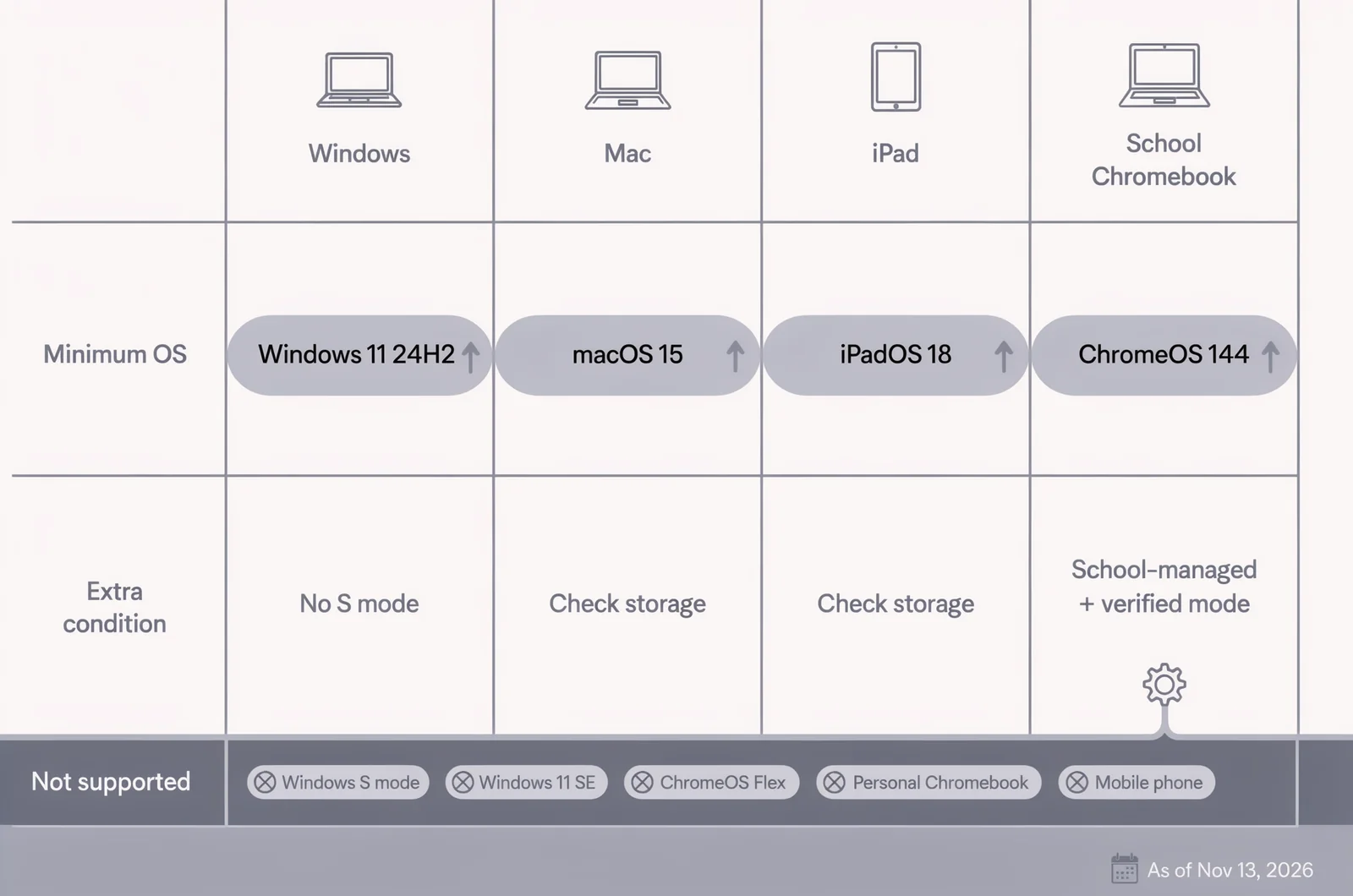
The current version and storage limits
College Board’s published requirements list the following versions and available storage as of November 13, 2026:
| Device family | Required minimum operating system | Recommended maximum | Available storage |
|---|---|---|---|
| Windows | Windows 11 24H2 | Windows 11 26H2 | 1 GB |
| Mac | macOS 15 | macOS 26.6.2 | 1 GB |
| iPad | iPadOS 18 | iPadOS 26.6.1 | 250 MB |
| School-managed Chromebook | ChromeOS 144 | Current stable-channel versions | At least 1 GB |
Windows S mode and Windows 11 SE are unsupported. ChromeOS Flex is also unsupported, and personal Chromebooks and mobile phones are excluded. These restrictions appear in College Board’s approved device list.
The raised minimums put Windows 10, macOS 14, iPadOS 17, and ChromeOS 143 below the current thresholds. An older device may still be usable if it can run an eligible operating system and meet the remaining requirements.
Check the full version number. Knowing that a laptop runs Windows 11 does not establish whether it reaches the 24H2 minimum. Record the version before asking a parent, school technician, or other administrator for help.
Why the recommended maximum matters
A required minimum and a recommended maximum answer different questions. The minimum establishes the operating system floor. College Board says versions above its recommended maximum may allow installation, but their compatibility has not been fully tested.
The organization publishes annual technical requirements each summer and certifies higher versions during the year. It generally avoids raising minimums midyear, although compatibility, security, or vendor-support issues can require exceptions. That distinction is explained in its technical requirements policy.
For students, the sensible approach is to check the published range before changing operating systems close to a test. If your current version falls below the minimum, resolve that problem early enough to practice afterward.
School Chromebooks need an administrator's attention
A school-managed Chromebook now needs verified mode enabled to run Bluebook. Students should check this even when the app is already installed.
College Board’s instructions assign installation and required configuration to the school. They also warn that students and test-center staff may lack permission to repair a managed Chromebook on test day. A verified-mode error therefore needs school involvement before the student leaves for an unfamiliar testing location.
The school’s preparation work includes allowing Bluebook to update, checking network settings, and clearing storage. Students then open Bluebook and select Test Your Device. College Board provides the sequence in its school Chromebook instructions.
For a student borrowing a Chromebook, the useful question is whether that particular machine has been prepared for the upcoming administration. A general statement that the school uses Bluebook leaves the device’s configuration unresolved.
When requesting help, provide the test date, the device identification used by your school, and the exact error message. Ask when the Chromebook will be available for another check.
After the school makes changes, leave time to open Bluebook again and practice on that machine. This gives you a chance to become familiar with its keyboard and trackpad.
If you use approved accommodations, include them in that conversation. Ask the school to confirm the relevant accessibility setup before your practice session.
Battery life, screens, and keyboards still matter
Meeting Bluebook’s operating system minimum leaves several physical requirements to check. College Board specifies at least three hours of battery life for SAT Suite assessments.
Its general student guidance recommends preparing for three to four hours and bringing a power cord or portable charger. Access to an outlet may be limited.
The universal specifications also require laptop screens of at least 10 inches and tablet screens of at least 8 inches. External mice are permitted, while external keyboards are prohibited with laptops. Bluebook testing must run independently of virtual machines or remote environments. These conditions appear in the device requirements overview.
For SAT testing on an iPad, an external keyboard is permitted. College Board strongly recommends one for Windows tablets. Students should distinguish those tablet rules from the laptop restriction.
Battery planning deserves attention on an older machine. A full charge describes the battery’s current level; it does not establish how long that battery will last.
As a practical preparation step, use your intended device for a sustained practice session and observe its charge level. Treat unexpected shutdowns or rapid depletion as reasons to investigate before test day.
Pack the correct charging cable with the device. If you plan to use a permitted mouse or tablet keyboard, practice with that same accessory beforehand. Borrowed equipment deserves the same check: confirm the charger actually fits the machine you will bring.
The readiness timeline begins 30 days before test day
Bluebook preparation has several stages, so installing the app should happen well before the final week. College Board tells students preparing personal devices to begin at least 30 days before testing.
At least 30 days before the SAT
Choose an eligible device, install Bluebook, and select Test Your Device. The check examines the operating system, memory, available storage, and some settings that can interfere with testing.
College Board also recommends practicing on the intended testing device and checking that it can connect to Wi-Fi away from the usual home or school network.
Use the result to identify the next action. A storage warning calls for space to be cleared. An operating system warning calls for checking upgrade eligibility. A memory problem may require another device.
For students who also use Exam Dumpster’s browser simulator, reserve a separate session in Bluebook on the intended testing machine. A study session and an official device check answer different questions.
Five days before the SAT and on test morning
College Board’s preparation schedule calls for verification five days before testing. SAT Weekend students should reopen Bluebook, confirm their personal and test-site information, complete exam setup, and generate their admission ticket.
On test morning, students should reopen the app while connected to the internet, run the device check again, review messages, and charge the battery. The sequence is set out in the personal device preparation instructions.
Put these stages on a calendar separately. The early check creates time to solve problems; the final-week work prepares the upcoming administration.
Keep a short record of unresolved issues and who is handling each one. If someone else manages the device, agree on a time to check it again.
A replacement machine creates another preparation task. Allow time to become comfortable with its controls and confirm its readiness before returning to your normal study schedule.
An ineligible device does not have to mean a new purchase
Students whose devices fail the current requirements should investigate borrowing options before spending money on replacement hardware.
College Board advises checking with a school, family member, or friend for an eligible device. Students who lack access to one may request a loan through College Board after registering for SAT Weekend.
The request must be completed at least 30 days before test day. An adult who is not a family member must verify eligibility, and submitting a request does not guarantee approval.
Approved devices are made available at the test center. College Board directs recipients to arrive 30 minutes before standard check-in so they can receive the device, sign in, complete exam setup, and obtain an admission ticket. These conditions appear in its SAT device lending rules.
The deadline makes early checking especially useful for families working within a tight budget. Discovering an incompatible device during the final week leaves less time to arrange an alternative.
If you borrow privately, confirm when you can collect the machine and whether its owner can help with installation or settings. Arrange enough access for preparation as well as test day.
Keep the loan request, any approval, and collection instructions together. Students taking SAT School Day should follow their school’s equipment directions rather than assume the weekend lending process applies.
Analysis: older hardware changes the preparation schedule
The current Bluebook requirements make device planning part of SAT preparation earlier in the calendar. The likely impact depends on the problem a student encounters.
A supported computer with insufficient free storage presents a different task from a computer that cannot run the minimum operating system. A managed Chromebook with a configuration error introduces another dependency: access to school staff.
That difference should guide the response. Identify what failed before deciding whether to update, request administrative help, or arrange another machine.
Consider a hypothetical student whose intended laptop fails its check a month before testing. The immediate task is to establish whether the problem can be resolved on that laptop. Keeping the error message makes the conversation with whoever manages it more useful.
Content review can continue during that process. Exam Dumpster’s saved progress and answer explanations can support study between troubleshooting sessions. Keep technical tasks on a separate list so neither problem disappears into a vague sense of being behind.
A useful readiness selector could ask for the device family, operating system version, school-management status, and test date. It could then identify which published requirements and preparation deadlines need attention. Its result would remain planning guidance; the student would still need Bluebook’s official check.
For families, the decision should follow the diagnosed issue. Check whether the existing device can qualify before treating a new purchase as the default response.
Questions about the current Bluebook rules
The updated requirements raise practical questions for students whose equipment has changed since their last test.
Can an older laptop still qualify?
Yes, if it can meet the current operating system, hardware, and configuration requirements. Device age alone does not answer that question. Check its actual specifications and Bluebook’s result before deciding to replace it.
If the operating system cannot be updated far enough, investigate another device while preparation time remains.
Should every student install the newest operating system?
Check College Board’s current supported range first. Its recommended maximum reflects compatibility testing, and a version above that range may have less certainty.
Students below the required minimum need to resolve that gap. Those already within the published range should review the guidance before making a major last-minute change.
Does completing practice establish test-day readiness?
Practice helps you become familiar with the device and app. Keep the formal device check and upcoming exam setup on your schedule as separate tasks.
Record when you completed each stage. If a setting, operating system, or device changes afterward, review the preparation instructions again.
What should a student do with an administrator-controlled error?
Give the person managing the device the exact message and the test date. Ask for a specific time to check the machine again after changes.
For a school-owned device, start with the school’s designated support contact.
Watch College Board alerts before the next administration
Bluebook’s requirements should be checked alongside administration-specific notices. A device can meet the published specifications and still need an app update or another action identified in an alert.
College Board’s alert archive includes a September 9, 2026 notice instructing Mac and iOS users to restart Bluebook before the September SAT. That notice is archived and should be read in its original testing context. Students should review the current student alert page for their own administration.
The distinction matters when an old screenshot circulates in a group chat. Check the notice’s date, affected devices, and named test administration before applying its instructions.
Keep the current device requirements and your upcoming test information together. After resolving any warning, reopen Bluebook on the machine you plan to bring and complete the preparation steps for that administration.
Interpreting SAT practice scores
Open a free sample set for their exam code, then create a free account to unlock the rest and save progress Get started |  |